
Customers in Leeds rarely stick around when a website displays awkward menus or clunky text on their phones. Modern shoppers expect smooth online experiences across smartphones, tablets, and desktops, making site adaptability more important than ever. By focusing on responsive design best practices, you set your business apart and create a welcoming visitor experience that keeps people engaged no matter how they access your website.
Table of Contents
- Step 1: Assess Current Website Responsiveness
- Step 2: Implement Flexible Layouts and Scalable Images
- Step 3: Integrate Mobile-Friendly Navigation
- Step 4: Test and Refine for Multiple Devices
Quick Summary
| Key Point | Explanation |
|---|---|
| 1. Assess responsiveness on all devices | Test your website on smartphones, tablets, and desktops to identify user experience issues firsthand. |
| 2. Implement flexible layouts | Use percentage-based widths and flexible grids for content that adapts smoothly to device sizes without breaking the layout. |
| 3. Ensure scalable images | Set image max-width to 100% to maintain quality and prevent distortion across different screen sizes. |
| 4. Simplify mobile navigation | Create a collapsible menu or bottom navigation bar for touch-friendly access, enhancing user experience on mobile devices. |
| 5. Continuously test and refine | Regularly test your site on various devices and networks to catch issues and improve performance as new content is added. |
Step 1: Assess current website responsiveness
Before making any changes to your website, you need to understand how it currently performs across different devices. This assessment reveals whether your site adapts smoothly to smartphones, tablets, and desktops, or whether visitors encounter broken layouts and frustrating experiences.
Start by opening your website on multiple devices. Visit your site on your smartphone, tablet, and desktop computer to see the actual user experience firsthand. Pay close attention to how navigation menus behave, whether images scale properly, and if text remains readable on smaller screens.
Next, use Chrome Developer Tools to test responsiveness systematically. Right-click anywhere on your website and select “Inspect” to open the developer tools. Click the mobile device icon in the top-left corner to switch to responsive view. Here you can simulate various screen sizes and resolutions without needing physical devices.
When testing, examine these critical elements:
- How navigation menus display on small screens (do dropdowns collapse into a burger menu?)
- Whether images scale down without distorting or becoming too small to see
- If text remains readable without requiring horizontal scrolling
- Whether buttons and clickable elements have adequate spacing for finger taps
- If forms work properly on mobile devices
You can also use professional testing tools for verifying website responsiveness across multiple devices to test on actual hardware and identify browser-specific issues. This gives you a comprehensive view of real-world performance.
Document your findings in a simple spreadsheet. Note which screen sizes work well and which ones show problems. This baseline assessment becomes your roadmap for improvements.
Here is a quick comparison of testing methods for website responsiveness:
| Testing Method | Advantages | Limitations |
|---|---|---|
| Real Device Testing | Detects actual device issues | Requires access to multiple devices |
| Emulator Tools | Fast, covers many screen sizes | May miss touch-specific problems |
| Online Testing Platforms | Tests many browsers and OS quickly | May have subscription fees, less tactile feedback |
Your current website performance on mobile devices directly affects whether Leeds customers stay engaged or bounce to competitors.
Pro tip: Test your website at actual viewing speeds by throttling your connection in Developer Tools to simulate slower mobile networks. Many Leeds businesses lose customers because their sites load too slowly on 4G, even when the design itself is responsive.
Step 2: Implement flexible layouts and scalable images
Flexible layouts and scalable images are the foundation of truly responsive design. They allow your website to adapt gracefully to any screen size without breaking the layout or forcing visitors to scroll horizontally.
Start by moving away from fixed-width design. Instead of setting container widths to specific pixel values like 960px, use percentage-based widths that flex with the screen. This means a content area might be 80% of its parent container rather than a fixed number of pixels.

When building flexible grids, think in proportions. If you have three columns on desktop, calculate each column as roughly 33% of the container width. On smaller screens, these columns stack vertically into single columns using media queries to rearrange the layout at different breakpoints.
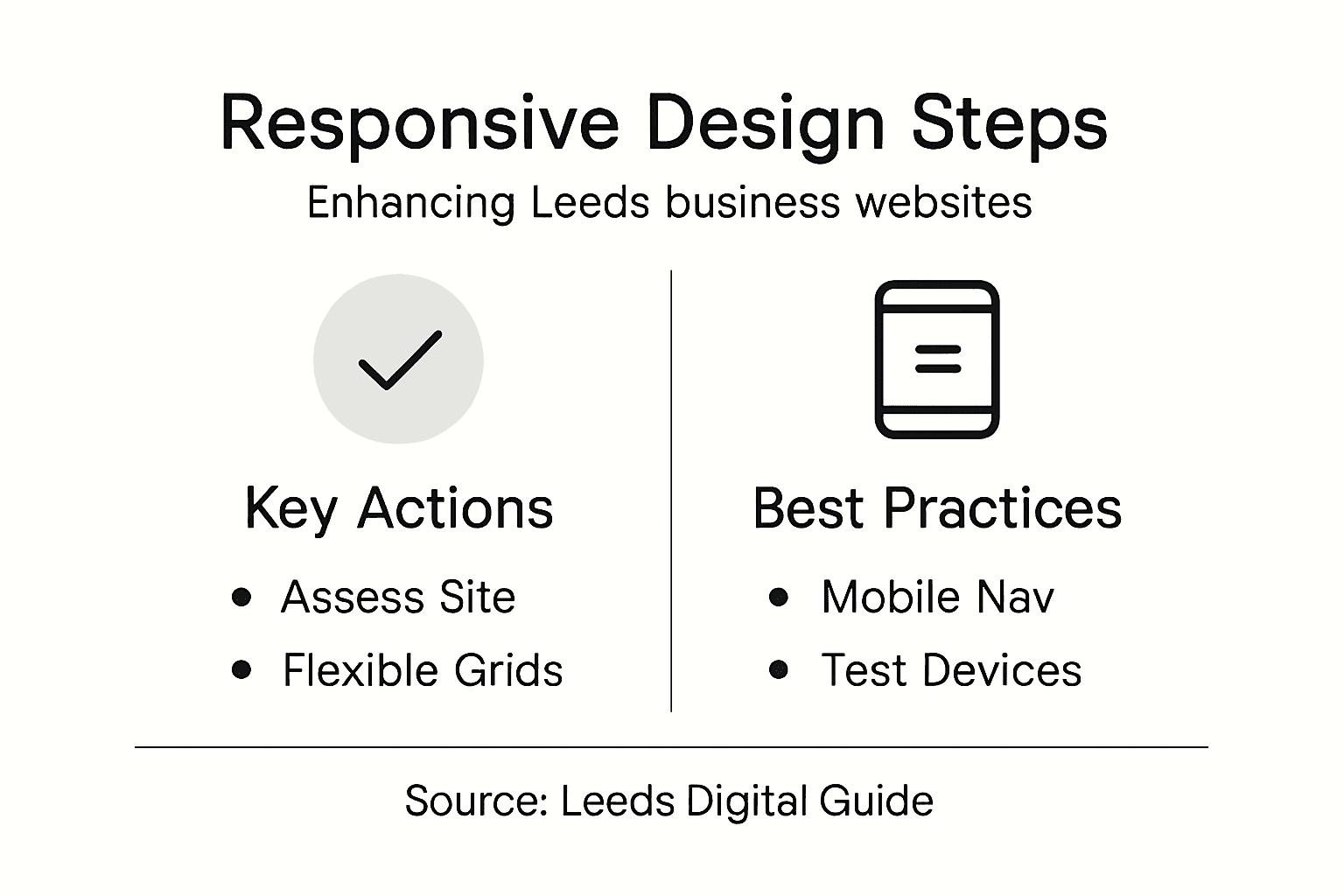
Images require special attention because they often break responsive designs. Implement flexible grids and responsive images by adding CSS properties that prevent images from exceeding their container width. Use max-width set to 100% so images shrink proportionally on smaller screens.
Here’s what to prioritise when implementing these changes:
- Replace fixed widths with percentage-based measurements throughout your CSS
- Set image max-width to 100% to ensure they scale down on mobile devices
- Use flexible spacing with relative units like em or rem instead of pixels
- Test column layouts at multiple breakpoints to confirm proper stacking
- Ensure text remains readable as layouts adjust
The beauty of this approach is that your content reflows naturally. A visitor on a smartphone sees a single-column layout with stacked content. The same visitor on a desktop sees multiple columns with full width images. Same HTML, completely different presentation.
The following table summarises the impact of flexible layouts and scalable images on user experience:
| Design Aspect | User Benefit | Business Outcome |
|---|---|---|
| Flexible grid layouts | Seamless content flow on all devices | Lower bounce rates |
| Scalable images | Crisp visuals without distortion | More professional appearance |
| Relative units (em/rem) | Readable, well-spaced text | Higher engagement and retention |
Flexible layouts aren’t about cramming everything onto small screens. They’re about showing the right amount of content for each device.
Pro tip: Use your browser’s responsive design mode to test at common breakpoints like 320px, 768px, and 1024px, but also test odd screen sizes in between to catch layout shifts that users might experience on less common devices.
Step 3: Integrate mobile-friendly navigation
Mobile navigation is often the difference between visitors staying on your site or leaving in frustration. When someone arrives on a smartphone, they need to find what they’re looking for quickly without wrestling with oversized menus.
The key is simplicity. Desktop navigation with multiple top-level menu items and complex dropdowns doesn’t work on small screens. You need a navigation system that adapts intelligently to finger-based interaction.
Start by implementing a collapsible menu that hides on mobile devices. The most common approach uses a hamburger button, three horizontal lines that expand into your full menu when tapped. This keeps the screen uncluttered while maintaining access to all your pages.
Effective mobile navigation patterns prioritise touch-friendly targets and clear visual hierarchy. Each menu item should be large enough to tap accurately with a finger, typically at least 44 by 44 pixels. Avoid cramping menu items too close together, as this frustrates mobile users.
Consider these navigation approaches for mobile devices:
- Hamburger menu for comprehensive site navigation that doesn’t fit on screen
- Bottom navigation bar for frequently accessed sections (up to 5 items)
- Search bar positioned prominently so visitors can quickly find products or content
- Breadcrumb navigation to help users understand their location in your site
- Sticky header that remains visible as visitors scroll
Test your navigation on real devices. Tap through menus to confirm they’re easy to use. Make sure the hamburger icon is obvious and that the expanded menu doesn’t cover important content.
Remember that Leeds customers on mobile devices are often browsing quickly between tasks. They want frictionless navigation that gets them to what they need without multiple taps or confusion.
Mobile navigation isn’t a stripped-down version of desktop navigation. It’s a thoughtfully redesigned experience for how people actually use phones.
Pro tip: Analyse your website traffic to identify your most visited pages, then prioritise those in your mobile menu or bottom navigation bar so customers reach them with fewer taps.
Step 4: Test and refine for multiple devices
Testing across different devices is where responsive design becomes real. You can have perfect code, but without proper testing, you’ll miss issues that frustrate actual customers visiting your Leeds business site.
Start with the devices your visitors actually use. Check your analytics to see whether most traffic comes from iPhones, Android phones, tablets, or desktops. Prioritise testing on those devices first, then expand to others.
Use both emulator testing and real device testing. Emulators in Chrome Developer Tools are fast and free, but they don’t catch everything. Real devices reveal performance issues and touch interactions that emulators miss.
When testing across multiple devices, verify layout consistency and performance on actual devices and browsers to identify issues you’d otherwise overlook. This iterative approach helps you refine based on genuine user conditions rather than assumptions.
Create a simple testing checklist and work through it systematically:
- Load your site on a smartphone and check whether all buttons are tappable
- Scroll through pages to confirm images scale properly and text remains readable
- Test forms to ensure input fields work smoothly on mobile keyboards
- Verify that videos and embedded content display correctly
- Check page load speed on slower mobile networks
- Test on different orientations (portrait and landscape)
Pay attention to performance metrics. A beautifully responsive design means nothing if it takes ten seconds to load on a 4G connection. Check your page speed using tools like Google PageSpeed Insights and address any serious delays.
Document what you find. Note which devices have problems, what those problems are, and how they affect user experience. This creates a prioritised list for refinement.
Testing isn’t a one-time task. As you add new features or content, test again to ensure nothing breaks on smaller screens.
Pro tip: Test on actual mobile networks by disabling WiFi during testing, as this reveals real-world performance issues that don’t appear when testing on fast office internet connections.
Elevate Your Leeds Business with True Responsive Design
Is your website struggling to engage mobile visitors because of slow loading, difficult navigation, or broken layouts? The challenge of implementing flexible layouts, scalable images, and mobile-friendly navigation can feel overwhelming but is crucial for keeping Leeds customers connected and reducing bounce rates. At KUKOO Creative, we understand these pain points and help businesses transform their online presence with designs that adapt seamlessly to every device.
Discover how our decade of experience crafting impactful websites and brand designs can fix the specific responsive design issues outlined in this guide. From optimising your site for all screen sizes to ensuring finger-friendly menus and fast loads even on slower connections, we tailor solutions that keep your customers engaged. Visit our website to start your journey and see how simple changes can bring a professional edge. Take the next step now and see why so many Leeds businesses trust KUKOO Creative to build online experiences that work perfectly on every device.
Frequently Asked Questions
How can I assess my website’s current responsiveness?
Start by checking how your website performs on smartphones, tablets, and desktops. Open your site on different devices and look for issues like broken layouts or unreadable text. Document your findings to create a plan for improvements.
What are flexible layouts and how do they benefit my website?
Flexible layouts allow your website to adapt seamlessly to any screen size. By using percentage-based widths instead of fixed pixel values, you can ensure that your content appears optimally on all devices. Implement this within a few days for noticeable improvements in user experience.
How do I create mobile-friendly navigation?
To create mobile-friendly navigation, implement a collapsible menu that simplifies access to your pages. Use touch-friendly buttons and ensure items are spaced adequately to prevent frustration. Test this design with real users to confirm its effectiveness.
What steps should I take for testing my website’s responsiveness?
Begin by loading your site on the devices most commonly used by your visitors. Use both emulator and real device testing to check for layout consistency and performance issues. Create a checklist and address any problems you find to enhance user experience.
Why is it important to test my website on slower mobile networks?
Testing on slower mobile networks helps identify performance issues that could deter visitors. Disable Wi-Fi during testing to simulate real user conditions and improve load times. Aim for optimal loading speeds, ideally within 2–3 seconds, to keep users engaged.
How often should I refine my website after implementing responsive design changes?
Refine your website regularly, especially after adding new features or content. Continuous testing ensures that your site remains user-friendly across all devices and screen sizes. Set a schedule to review your website’s performance every 1–2 months for ongoing enhancements.